How to set up Google Analytics
Navigate to https://google.com/analytics. Ensure you are signed into the Gmail account that you want associated with your Google Analytics account and click > Get Started Today. To be safe revisit ht…

Updated
by eMerchantClub Support
Navigate to https://google.com/analytics
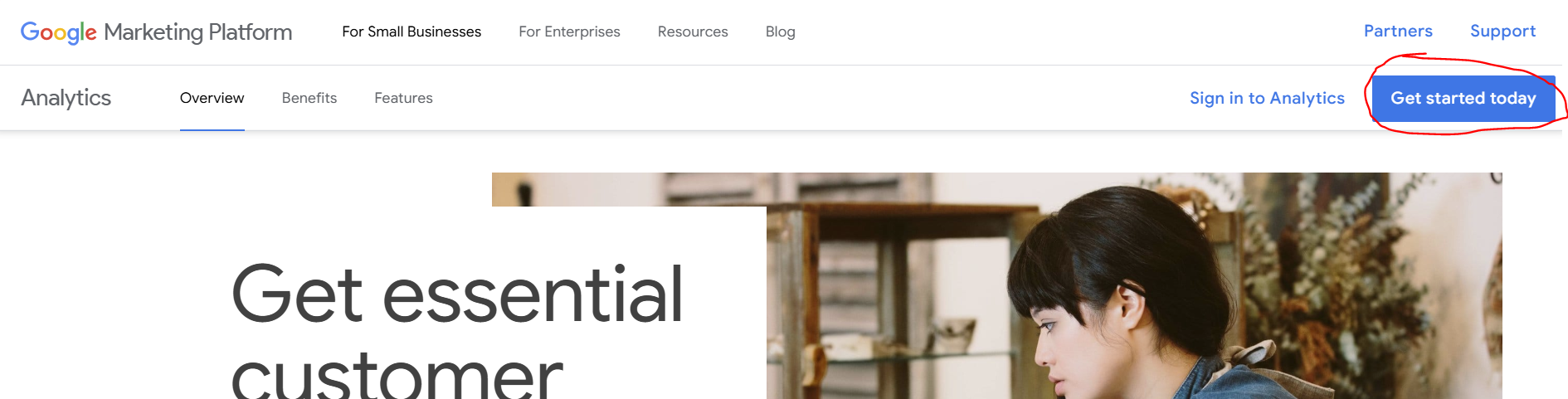
Ensure you are signed into the Gmail account that you want associated with your Google Analytics account and click > Get Started Today
To be safe revisit https://google.com/analytics
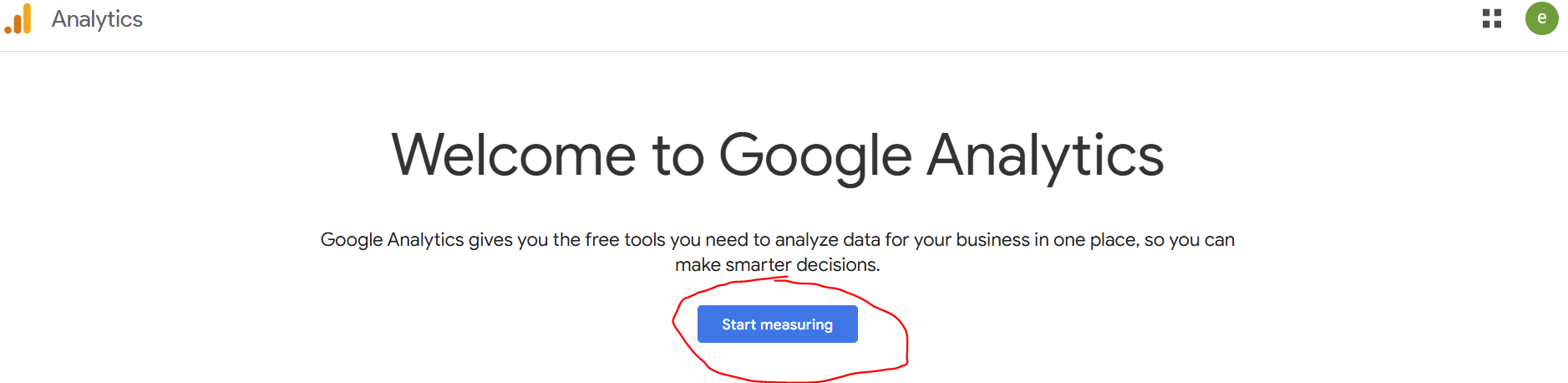
Click > Start Measuring
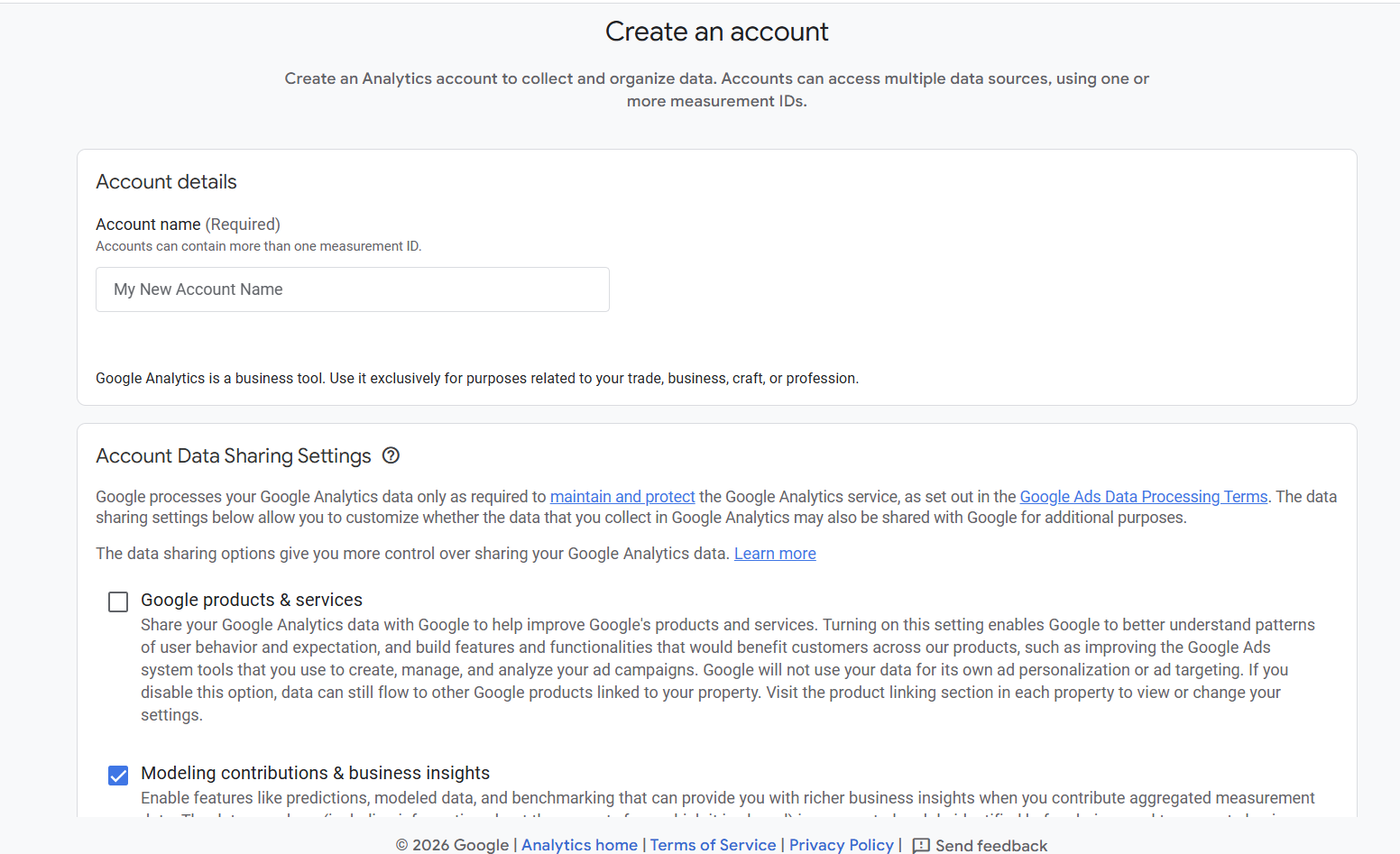
Name your account and agree to terms and conditions > Click Next
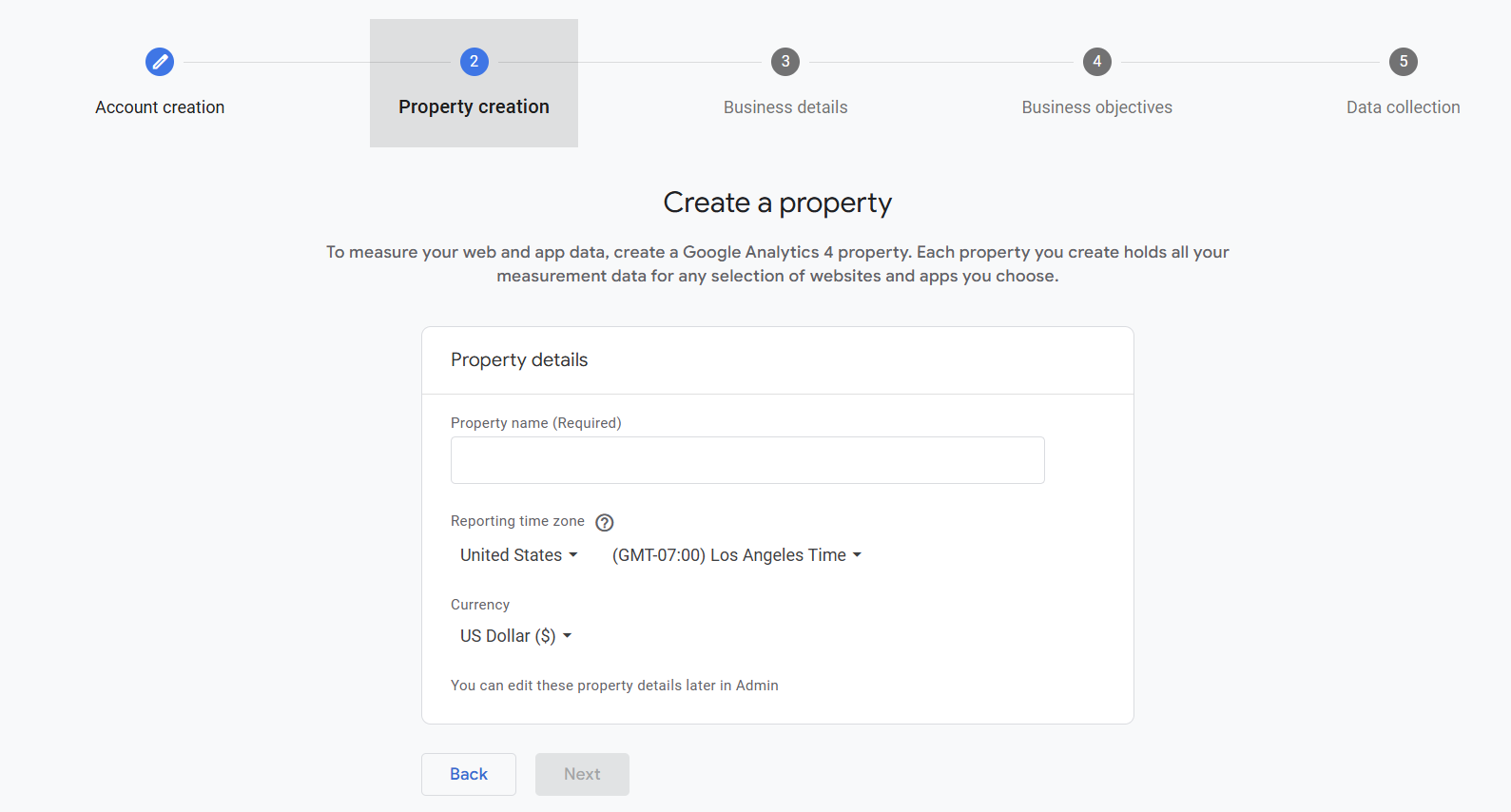
Name your property and click > Next
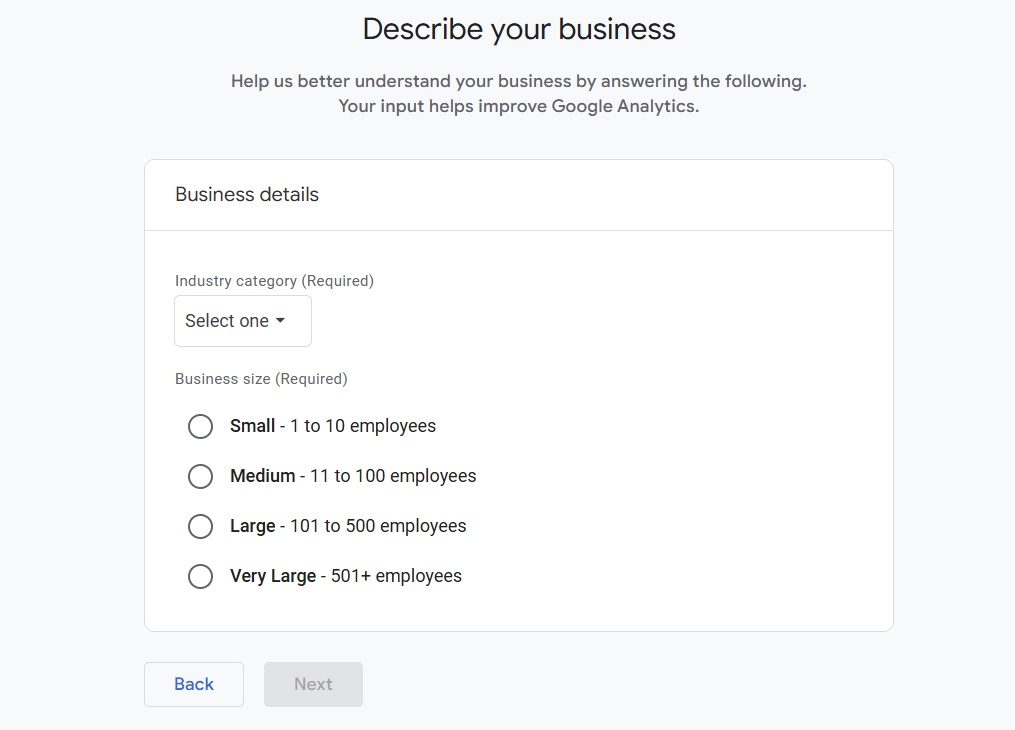
Describe your industry and business size > click Next
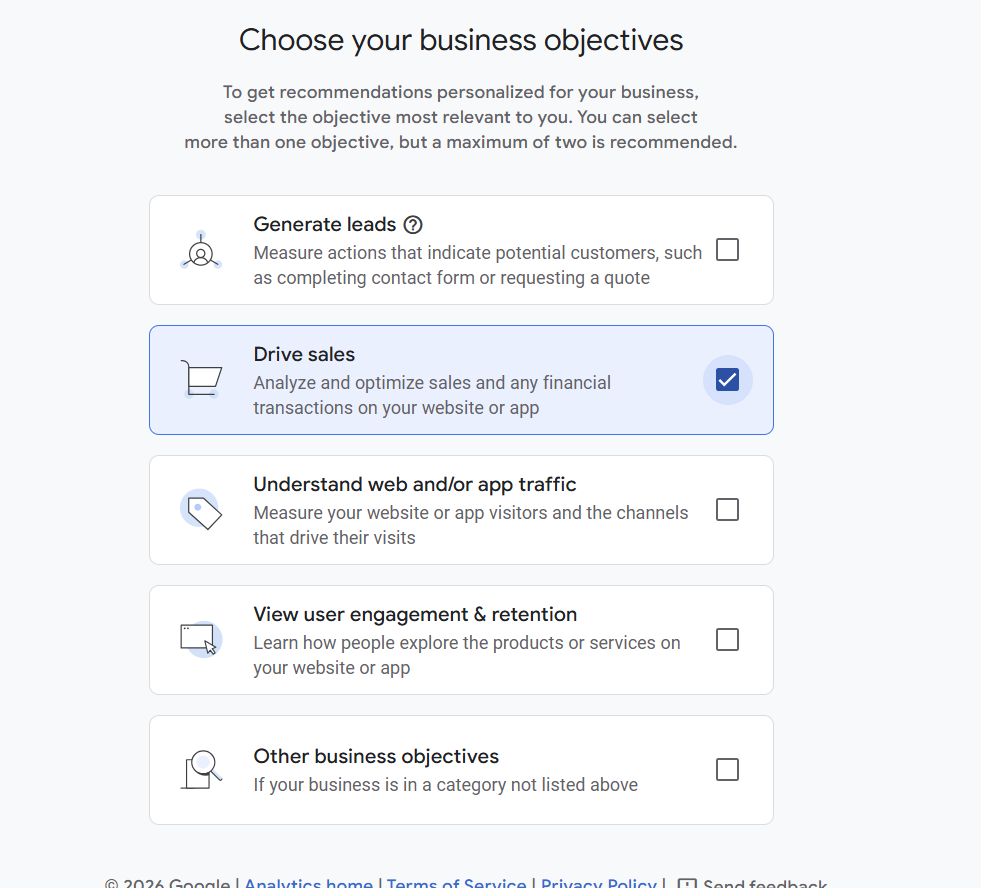
Choose your business goals and click > Create
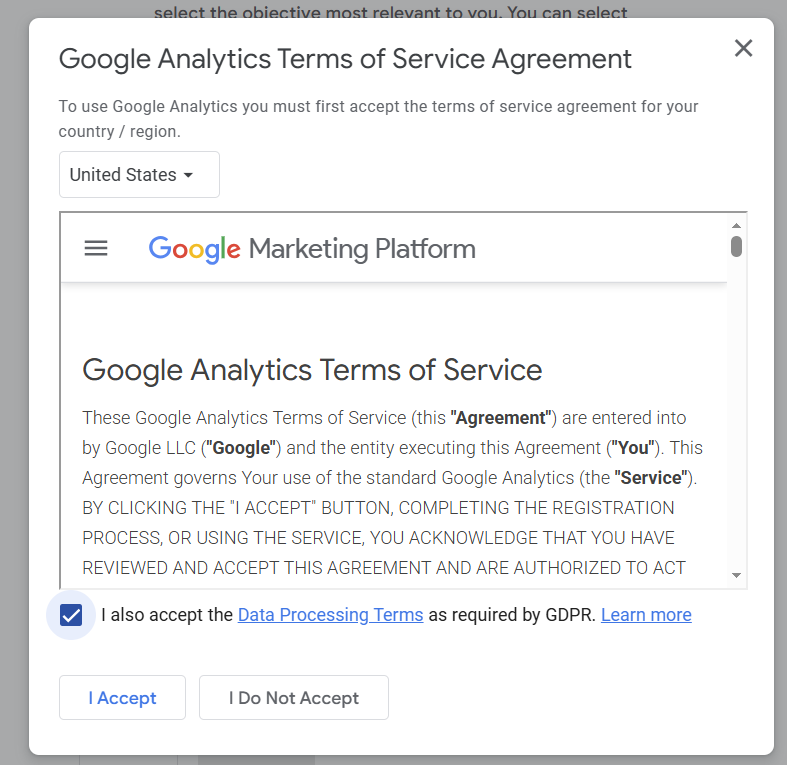
Check the box and click Accept
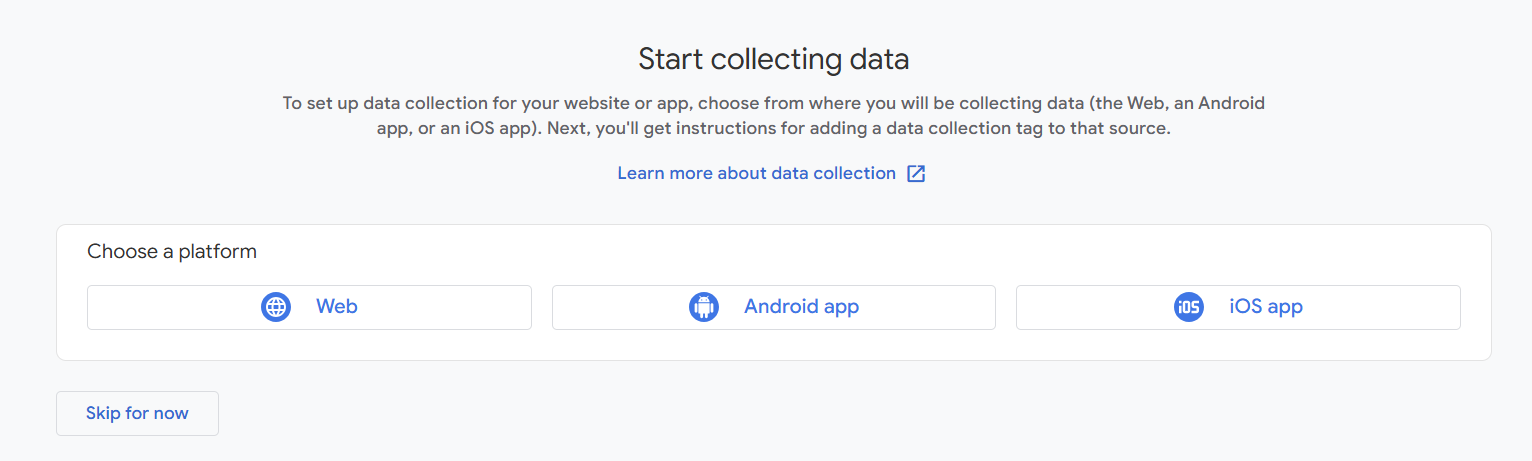
For Start Collecting Data choose Web
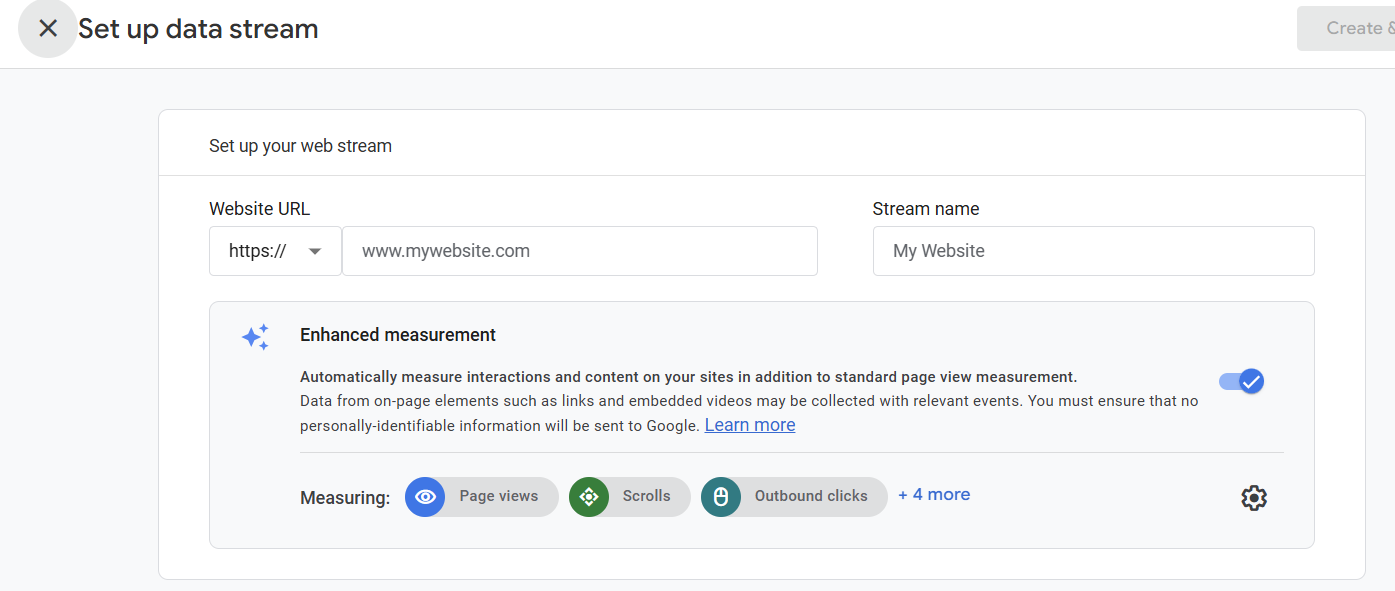
Enter your website URL and website name then click > Create & continue
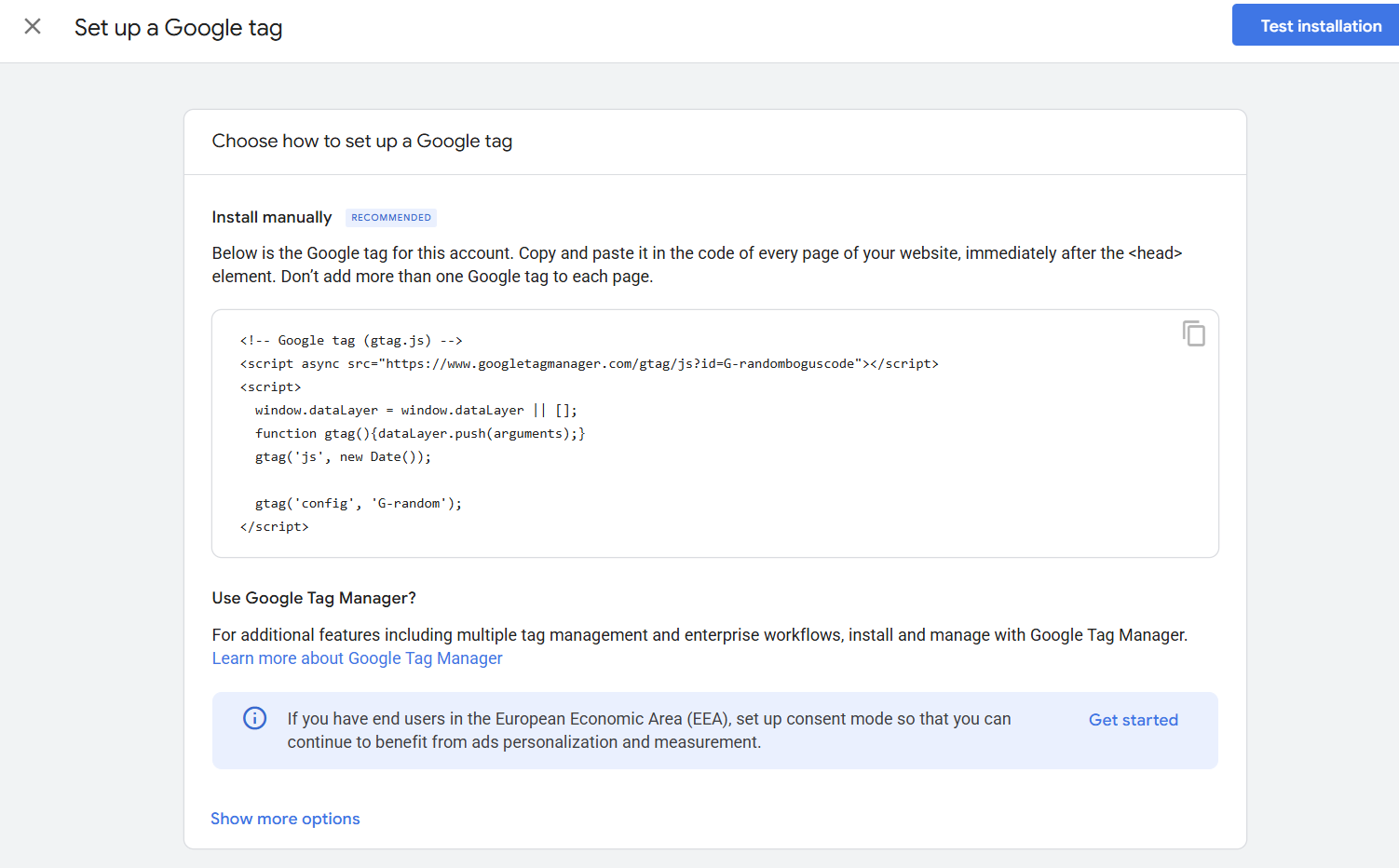
Next you will need to paste the google tag on your website manually > manually copy the code
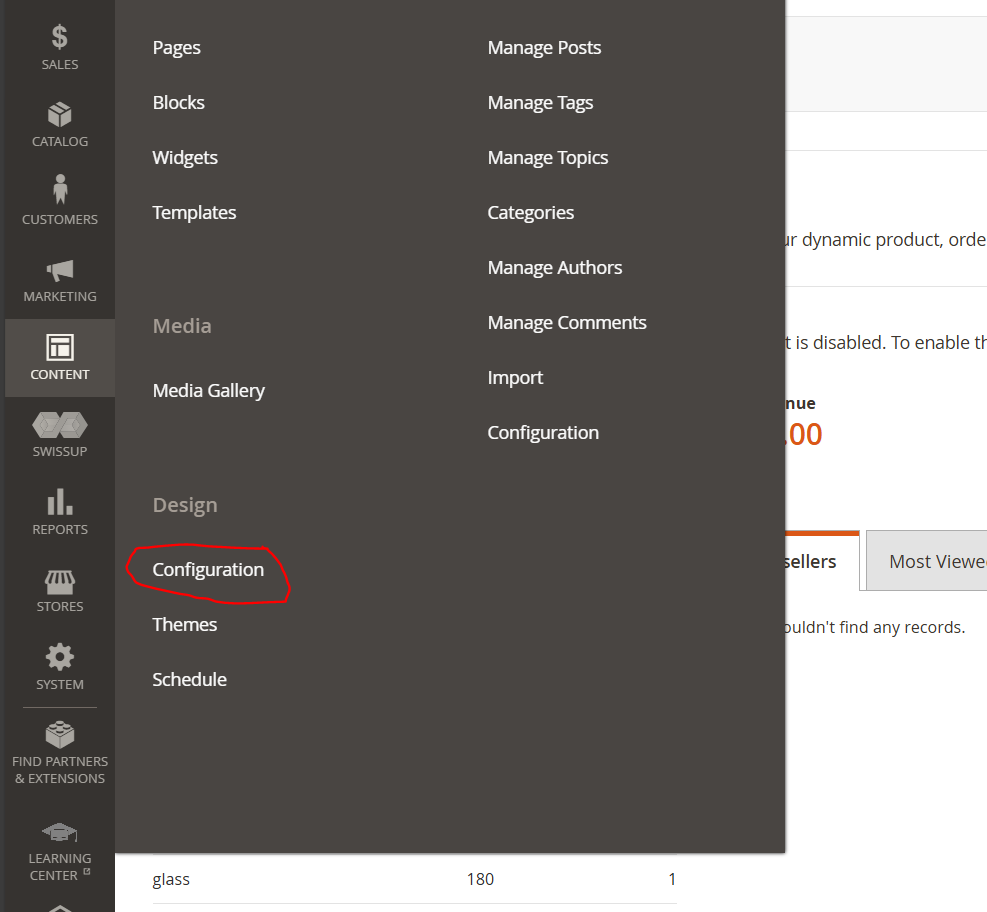
Once you have the code copied you will login to the back-end of your website - Once logged in navigate to Content > Configuration
Click edit on far right for Default Store View option

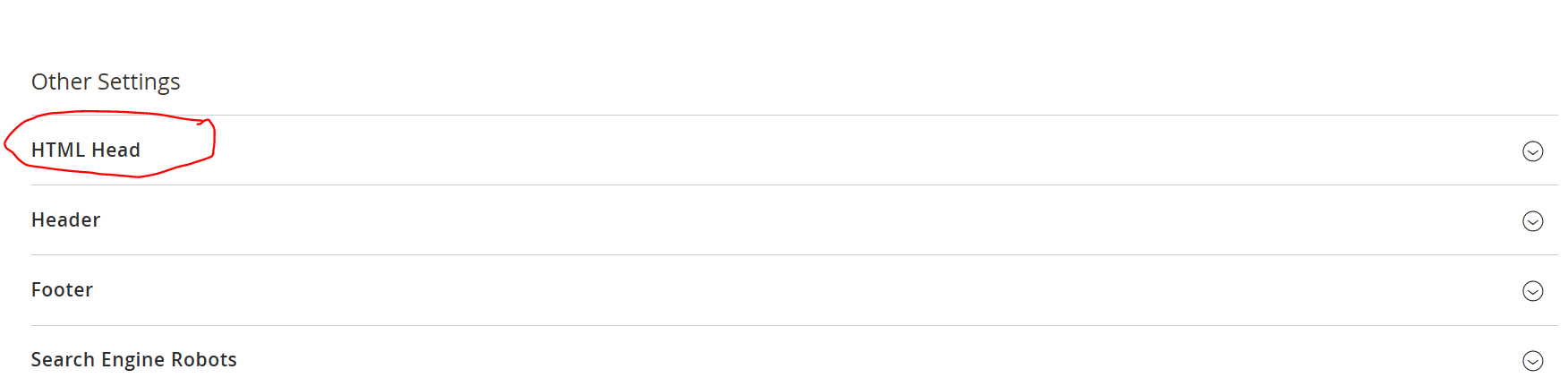
Click on HTML Head
Scroll down and paste the Google Tag script in the Scripts and Style Sheets area

Now, click Save Config in top right corner of page

After you save you must clear cache. Go to left sidebar > click System > Cache Management > click Flush Magento Cache
Now go back to where you got the Google Tag code and click Test Installation
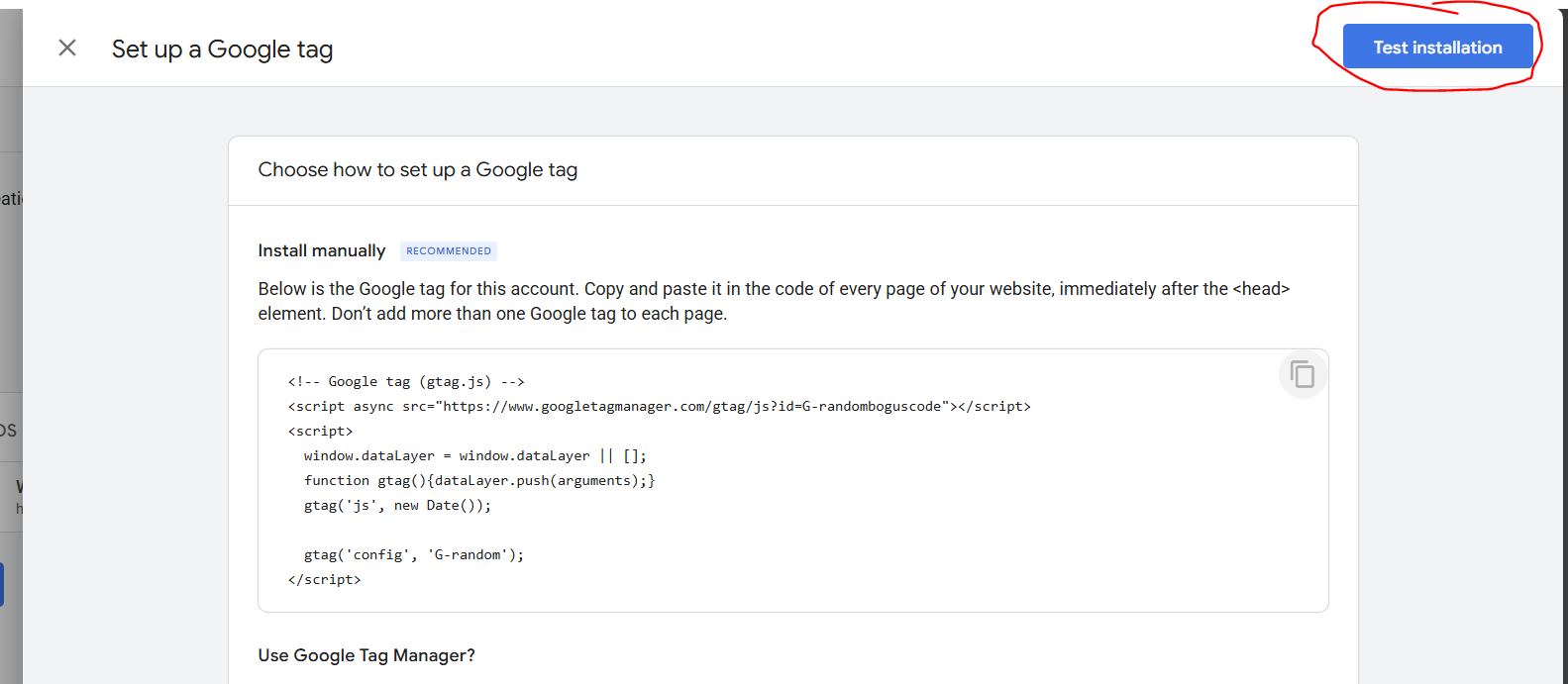
You will see a pop up at the bottom of the screen indicating that you have successfully connected your website to Google Analytics > Click Confirm in top right corner
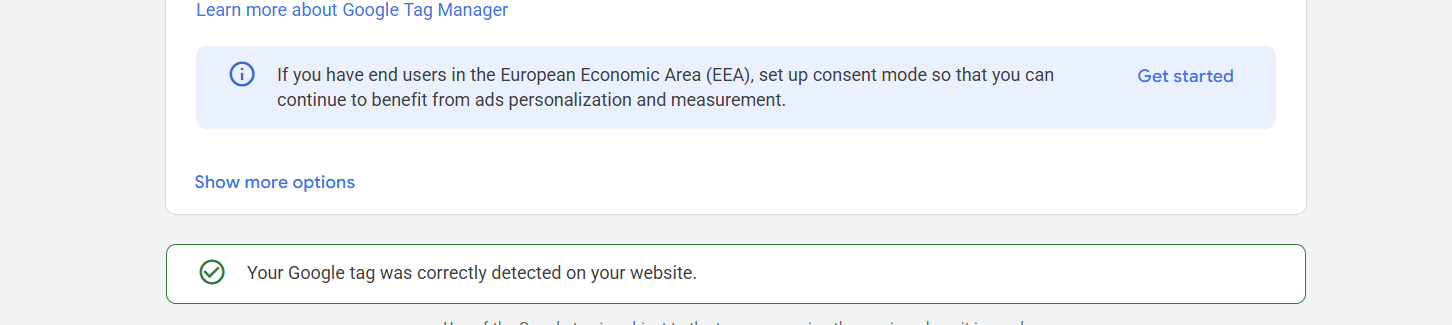
Now your data stream will be live. Give it anywhere from 24-72 hours to start reporting data.
How did we do?
How to enable testimonials block
The Difference Between Wholesale and Retail Pricing
