How to set up Stripe payments
Setting up Stripe as your payment processor is one of the easiest and most effective ways to start accepting credit and debit card payments on your eMerchantClub website. Stripe is a trusted, secure,…

Setting up Stripe as your payment processor is one of the easiest and most effective ways to start accepting credit and debit card payments on your eMerchantClub website.
Stripe is a trusted, secure, and user-friendly solution that integrates seamlessly with your store. Whether you’re brand new to online payments or simply switching from another provider, this guide will walk you through each step of the setup process — no tech experience required.
By the end of this guide, you’ll have your Stripe account connected and ready to accept real payments from your customers.
Step 1: Create your Stripe account
Navigate to Stores > Configuration > Sales > Payment Methods > Find Stripe and Click Configuration button

From here you will click the General Settings Dropdown > Click on the ‘click here’ to register hyperlink to navigate to Stripe

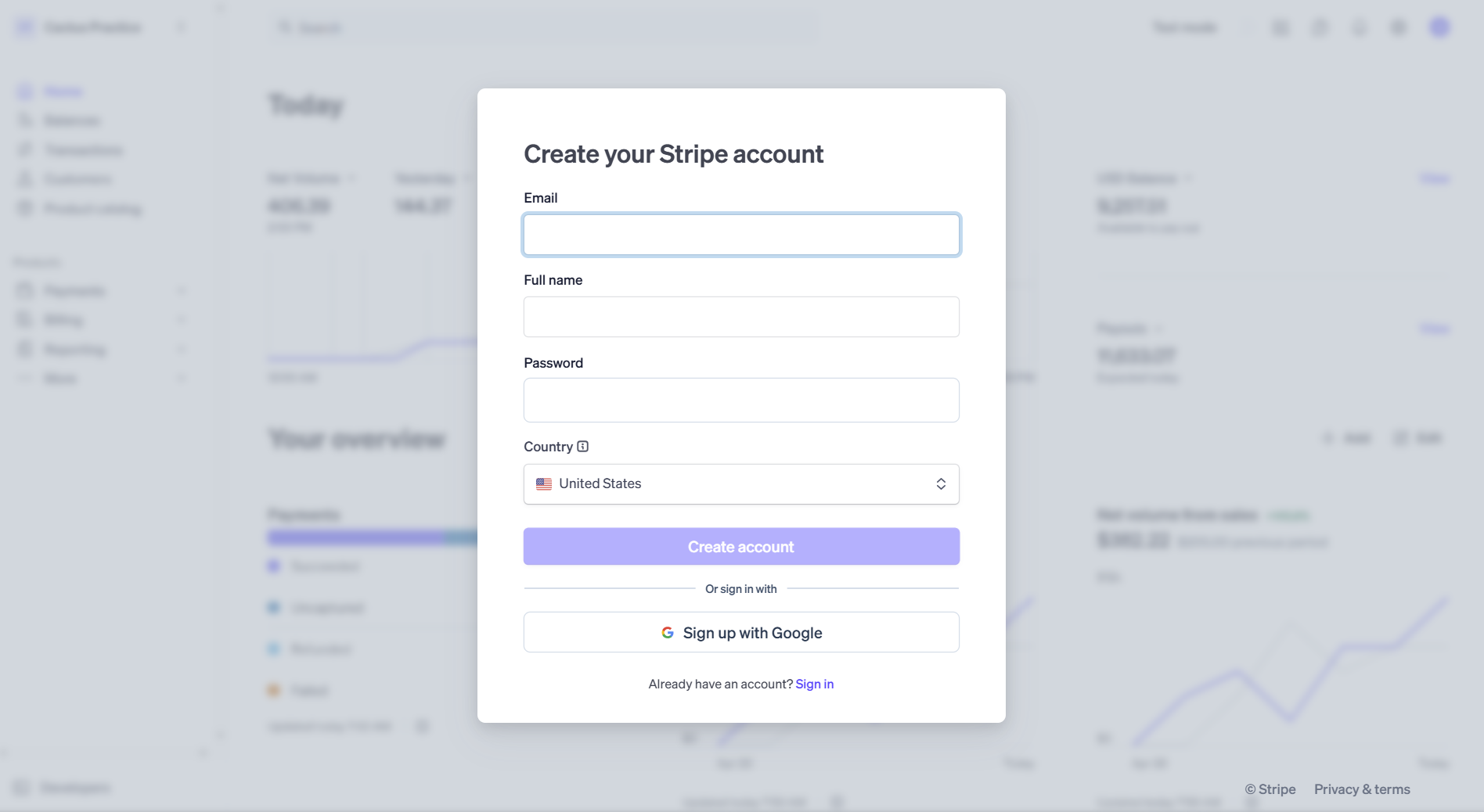
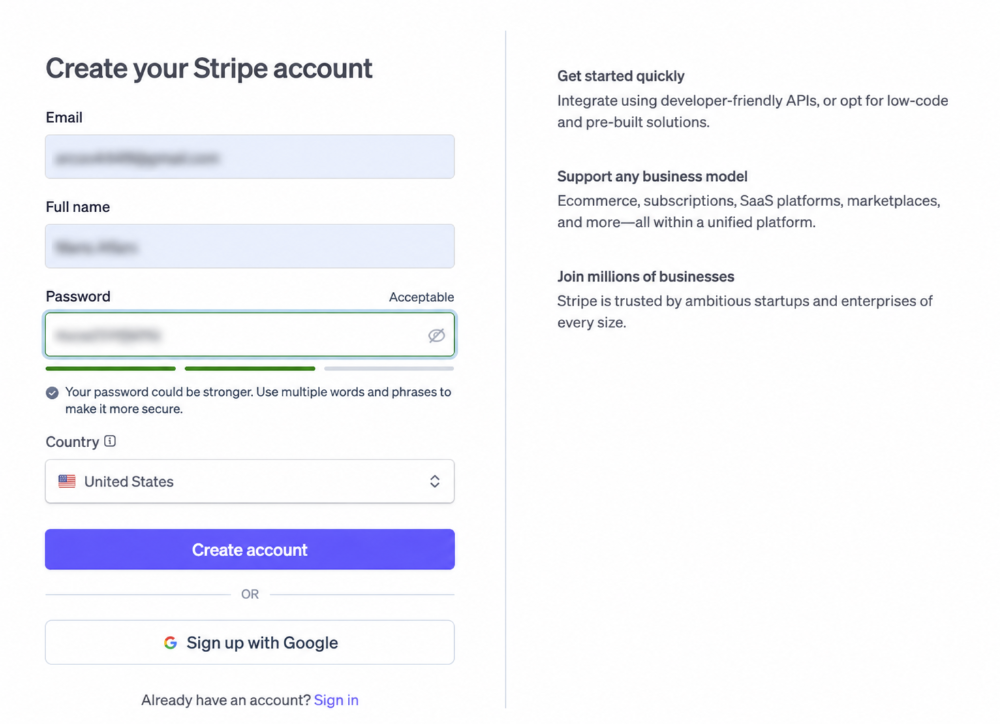
Enter the information you want to use for your Stripe account. Make sure you have easy access to the email that you enter as all of your Stripe account information will be sent there.


Enter your business name and what you offer click > Continue

Pick non-recurring payments > click Continue
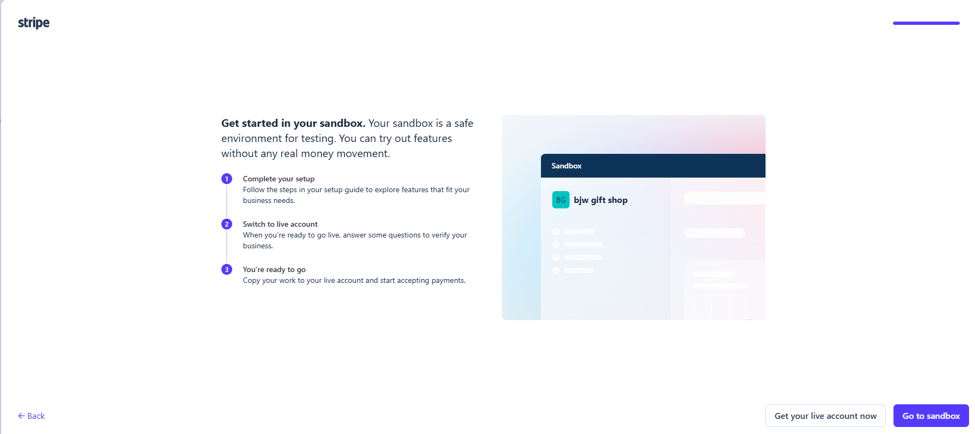
Select Get your live account now
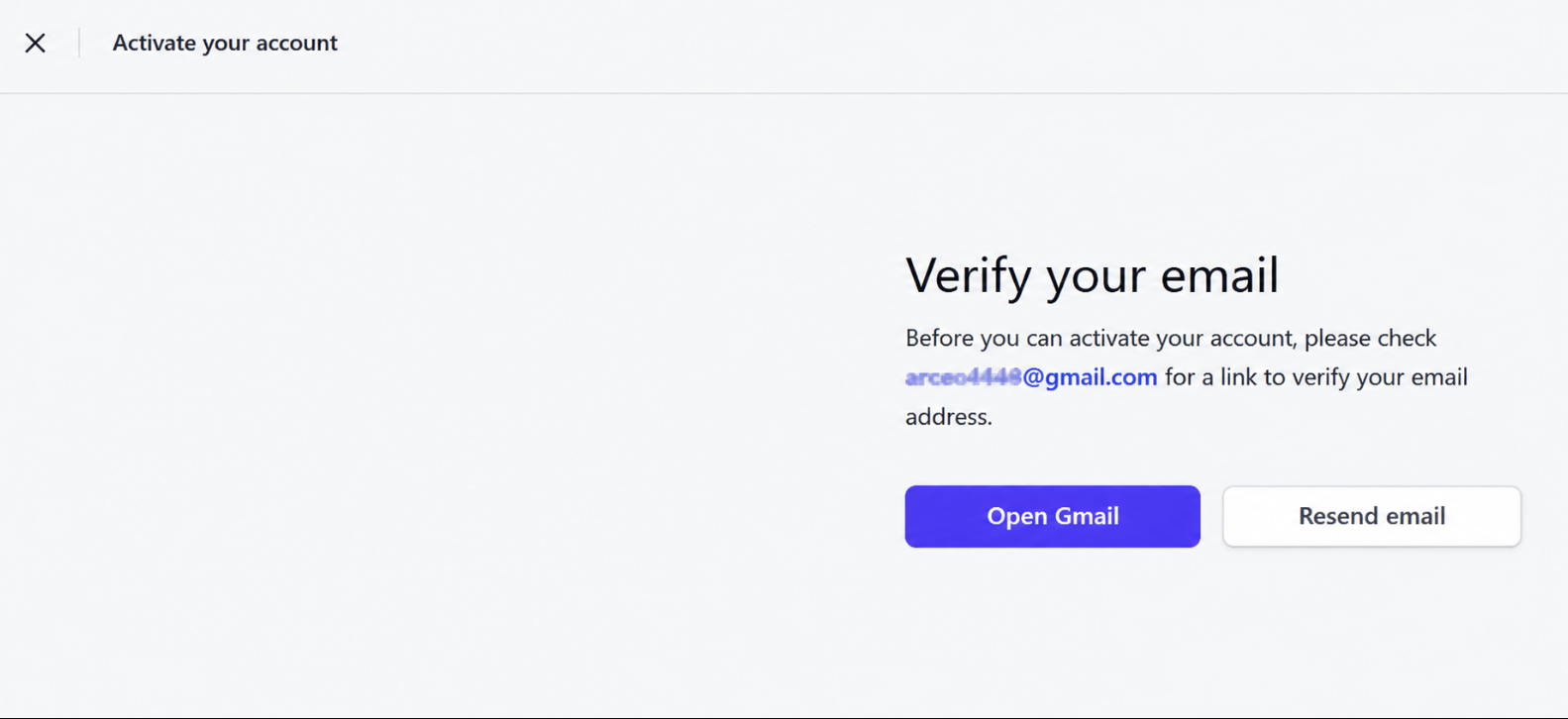
You will be prompted to Verify Your Email this is extremely important - Do this right away, NOT later.
If you do not verify your email it can create issues when you attempt to connect Stripe to your Magento 2 website.
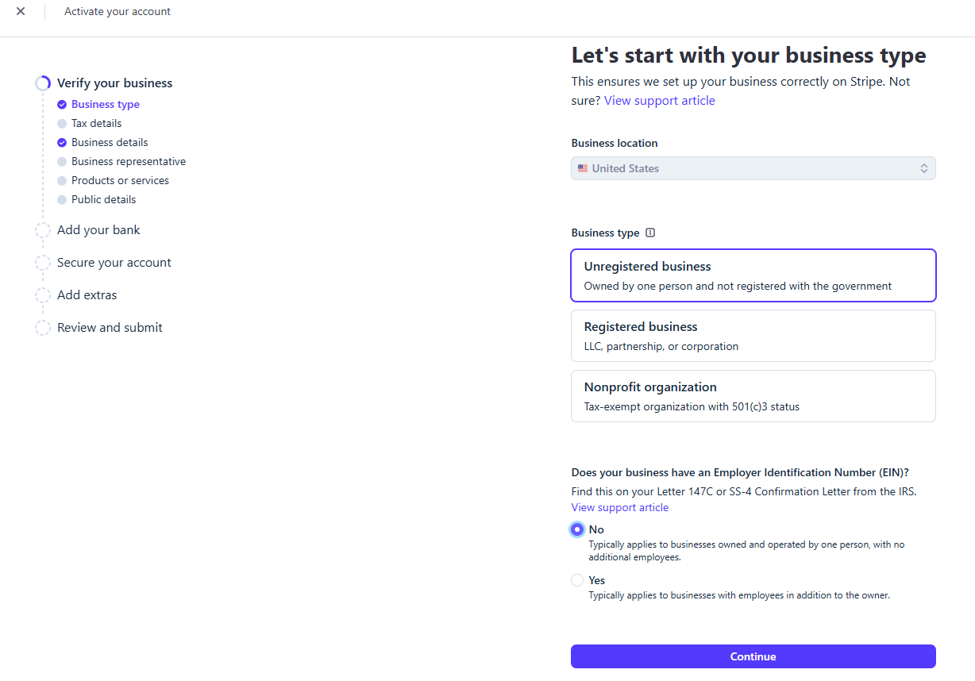
Or recommendation is to now select Unregistered Business > then we recommend selecting No for EIN (we are not tax professionals and ultimately how you want to register your business with Stripe is your choice) > Click Continue
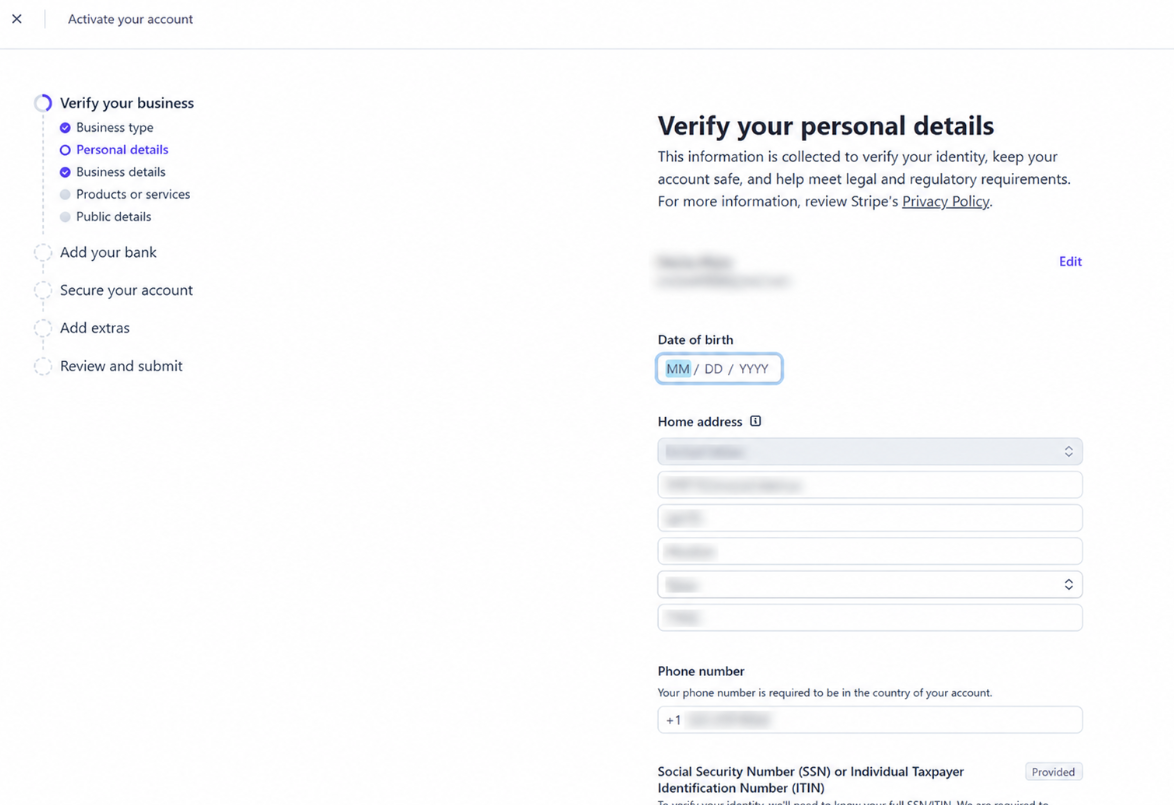
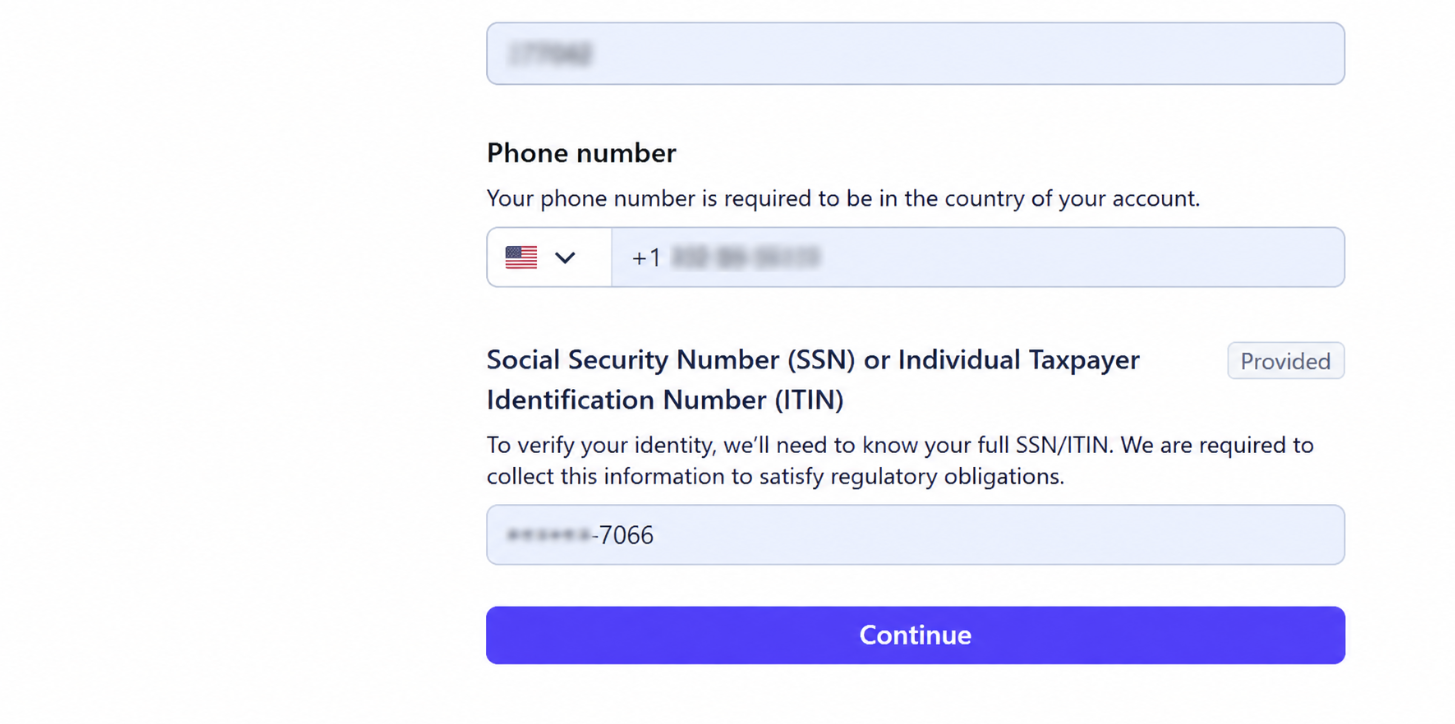
Verify your personal details > click Continue
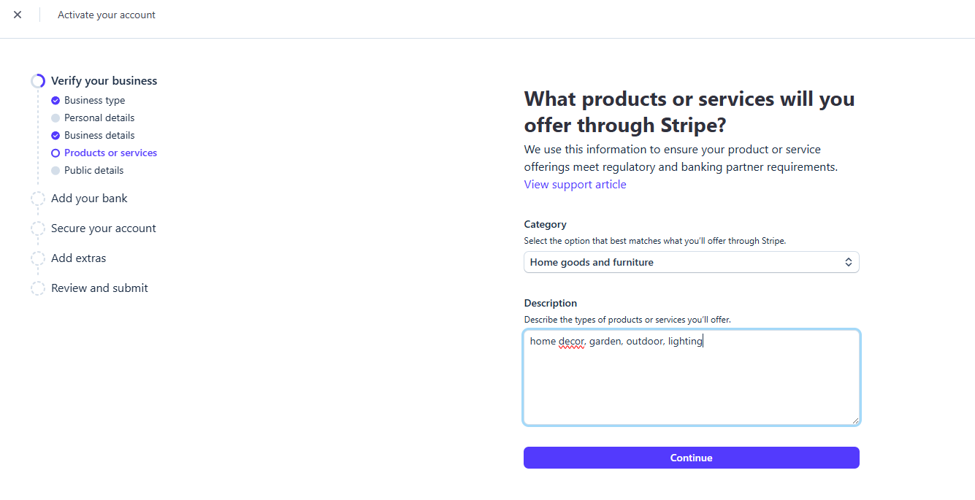
Add the details about your product or service. For example, if you have the home decor warehouse, you can add home decor, decorative accents, lighting, and more! > Click Continue
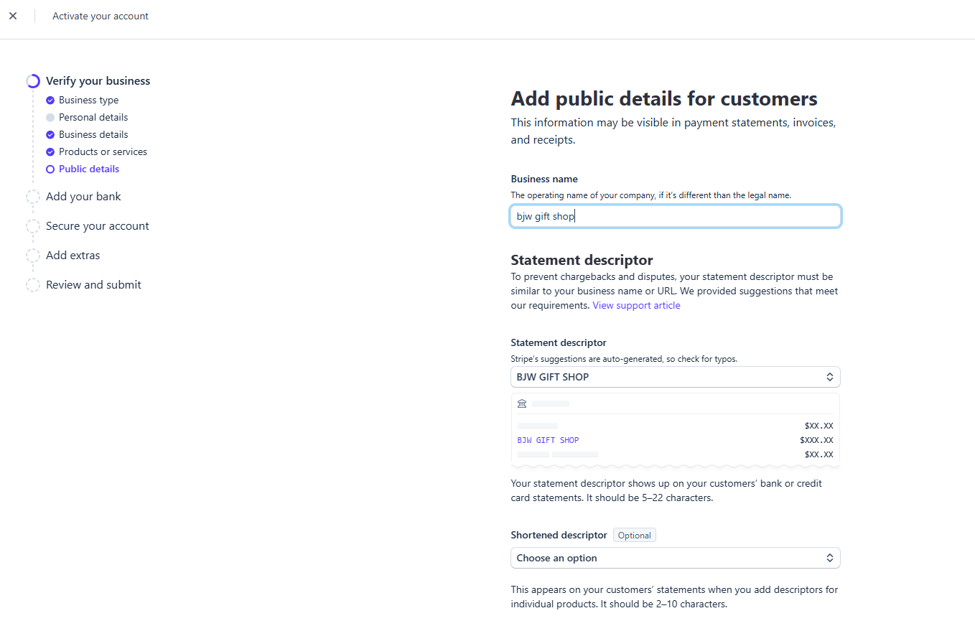
Add public details for customers.
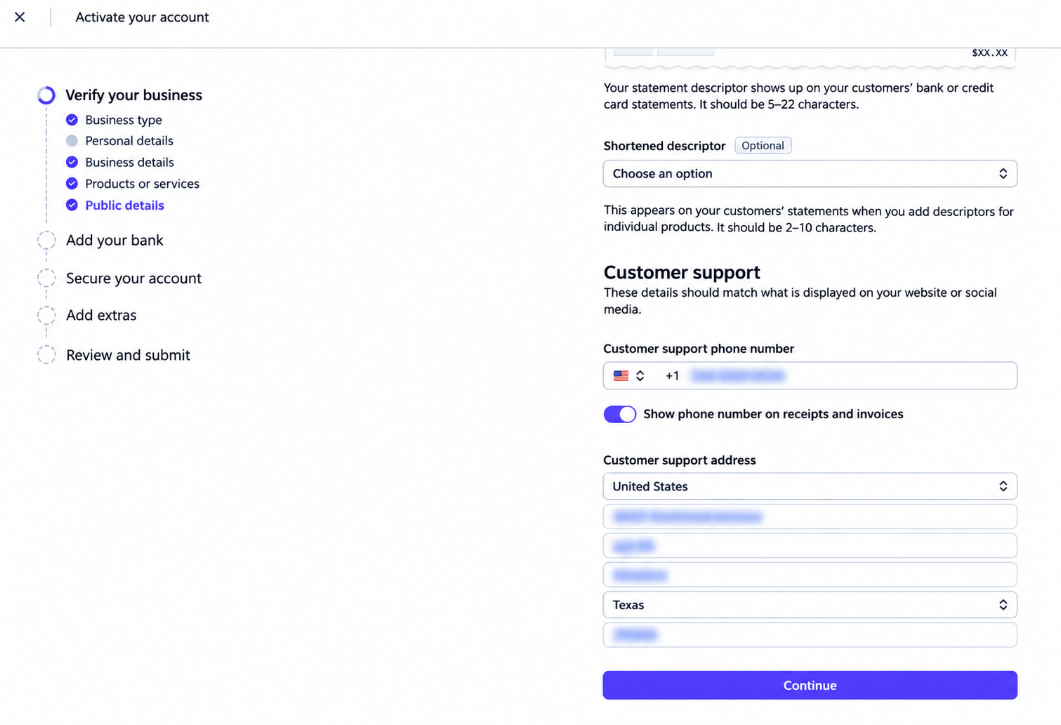
Add customer support details > Click Continue
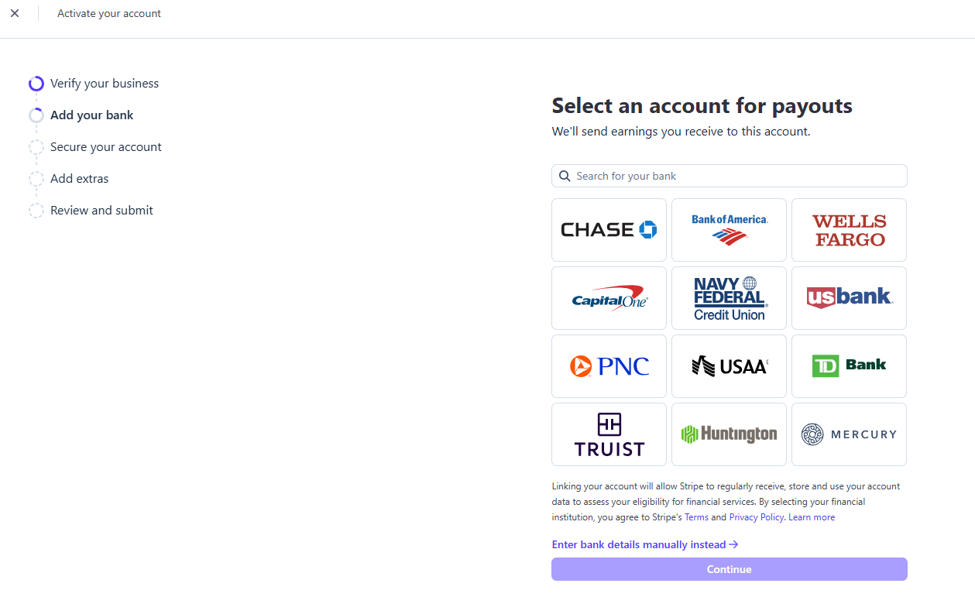
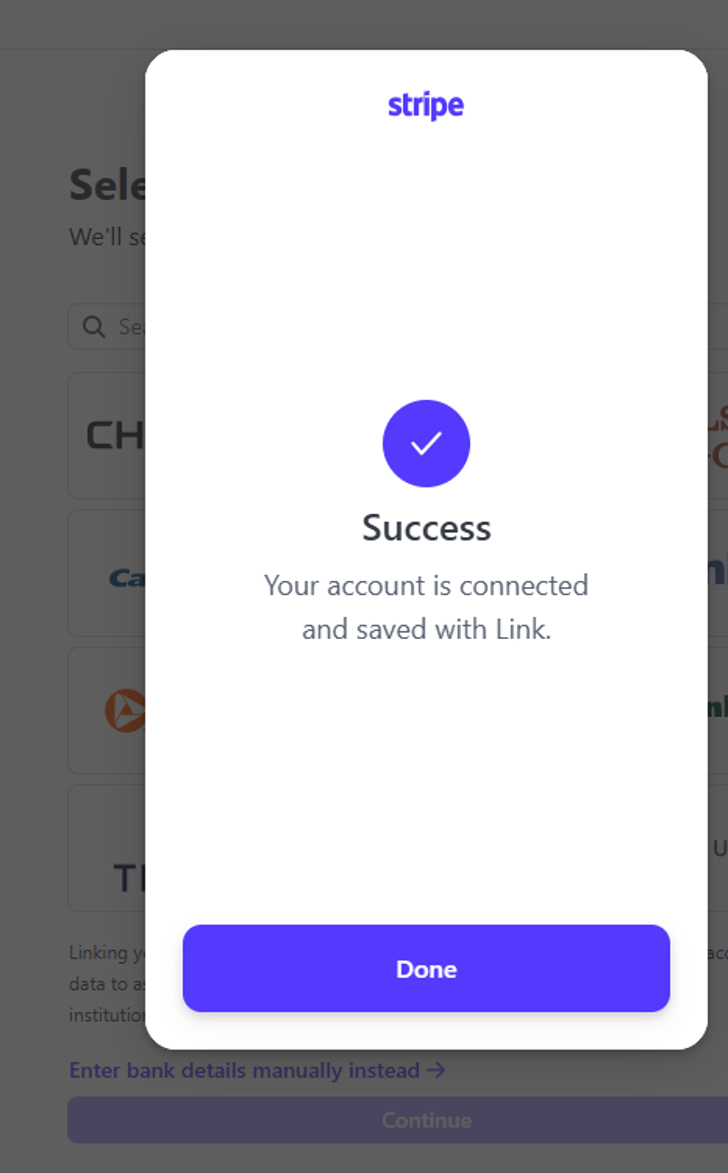
Next, add your bank. Default bank options will show. You can use the search bar to find your specific banking institution. > select bank and click Continue when found.
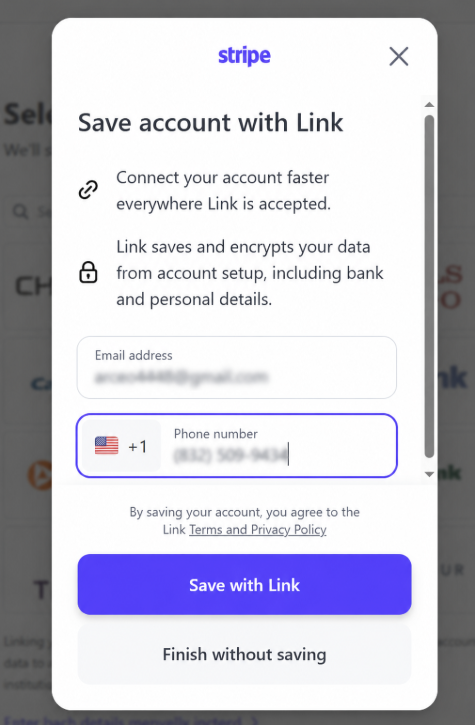
Enter your email and valid phone number > Save with Link
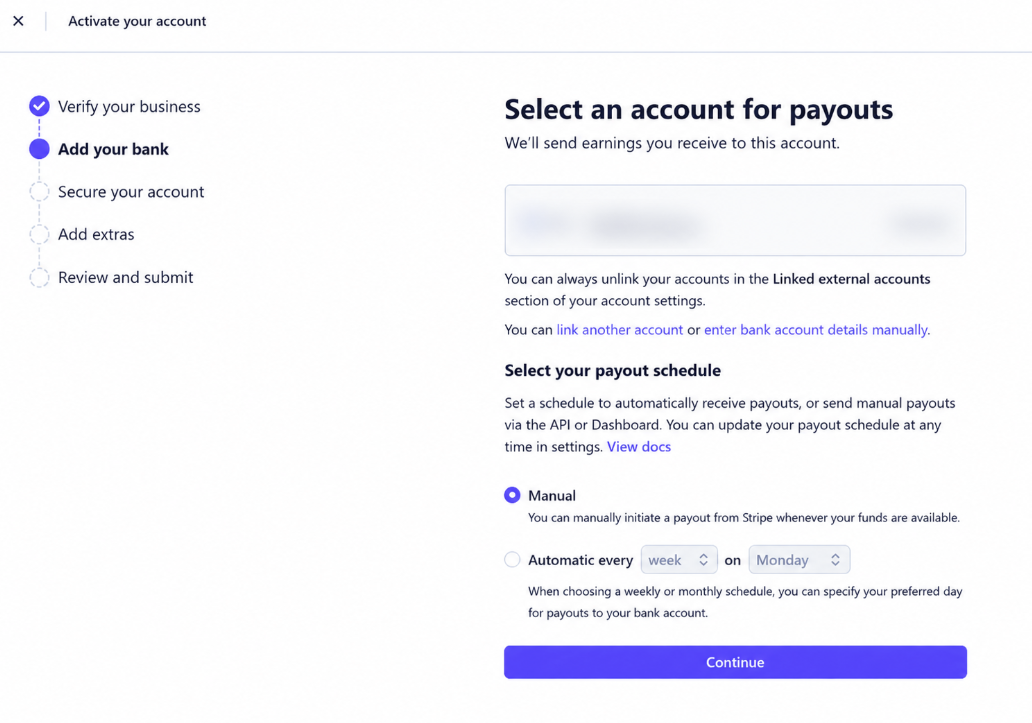
Select how you want your payouts > Click Continue
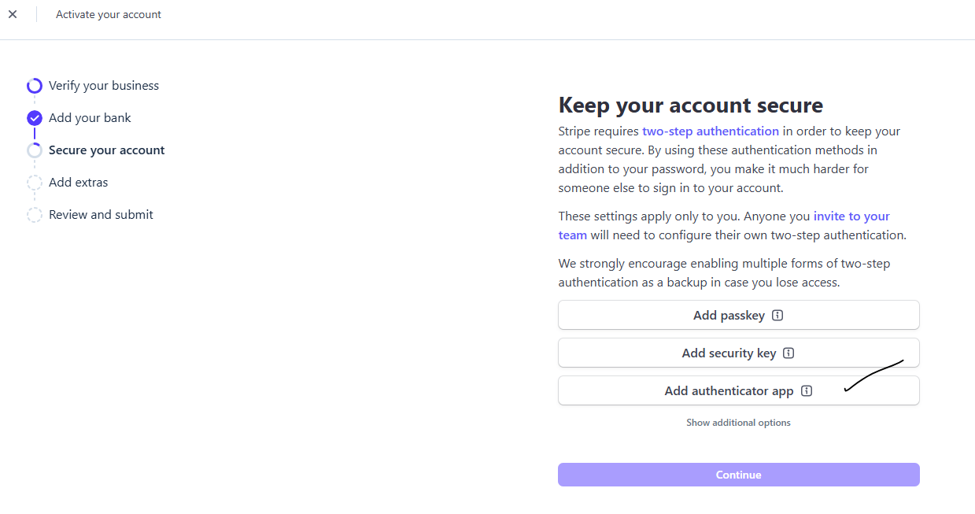
Keep your account secure - We recommend selecting add authenticator app. There are a few preferred options for authenticator apps (Google authenticator, Microsoft authenticator, and Authy)
If for some reason you don't want to use the authenticator app select "Add passkey"
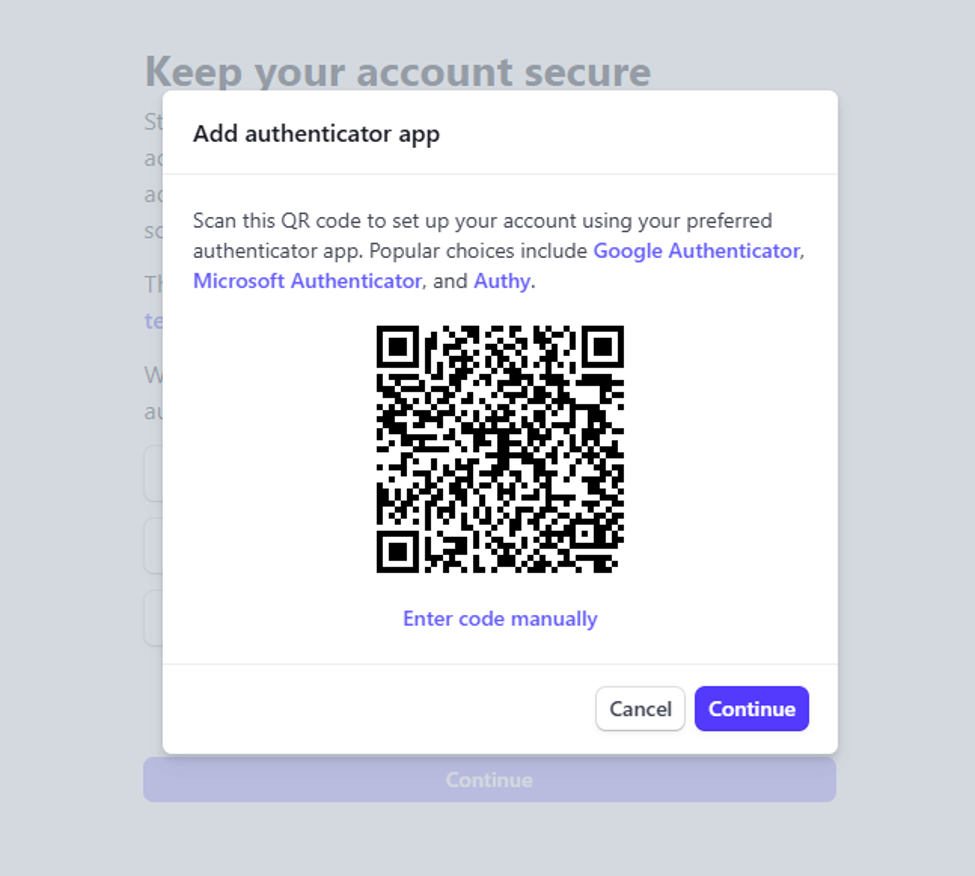
Scan the QR code (open the camera on your smart phone to do this)
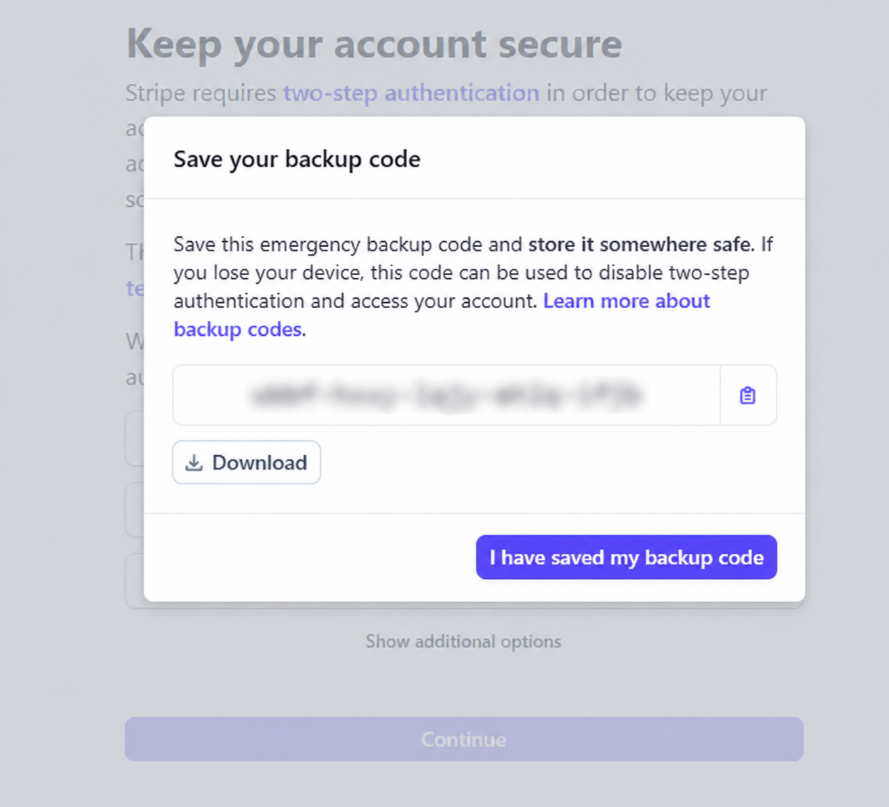
Save your back up code
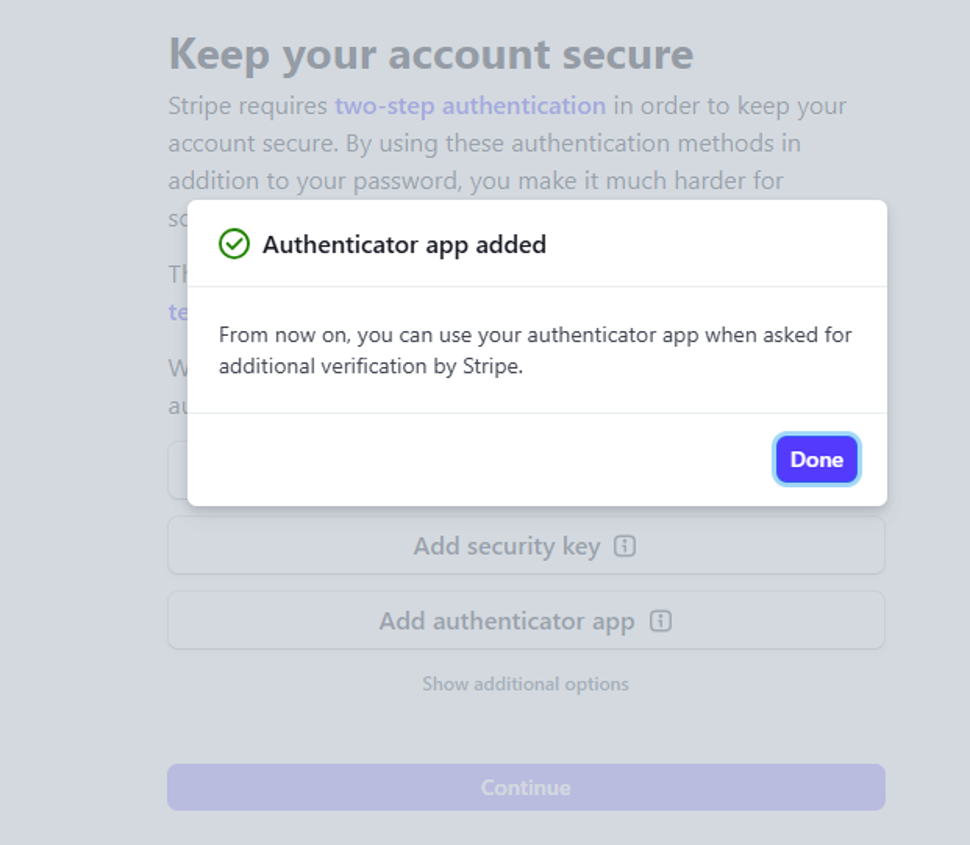
Moving forward you will need to access your authenticator when asked for additional verification from Stripe.
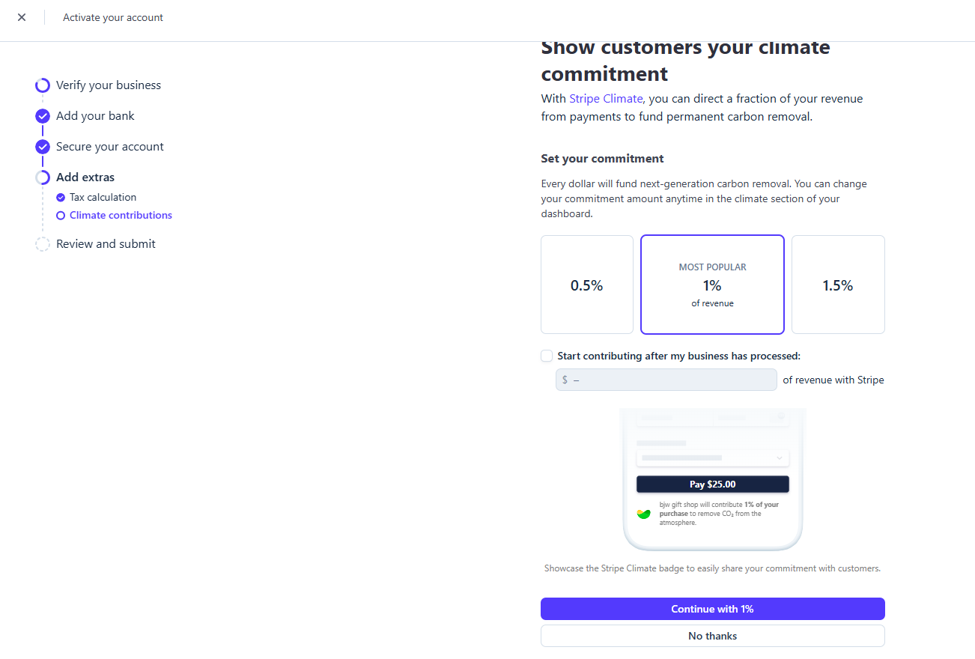
Select No Thanks
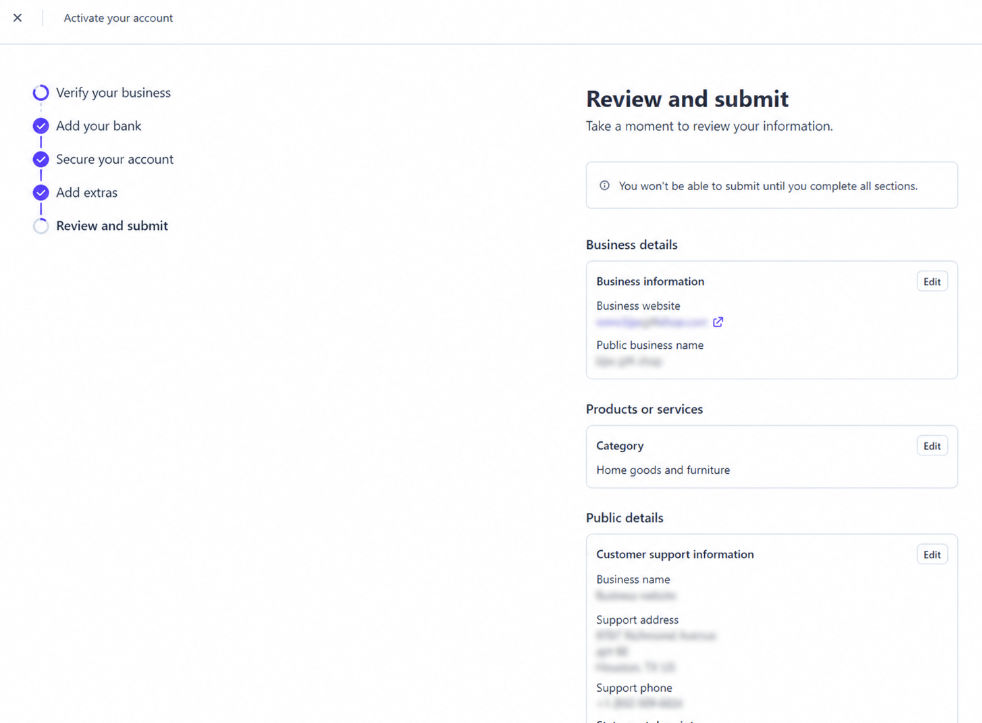
Review the details of the account. Make sure everything is accurate. If not you can select 'Edit'
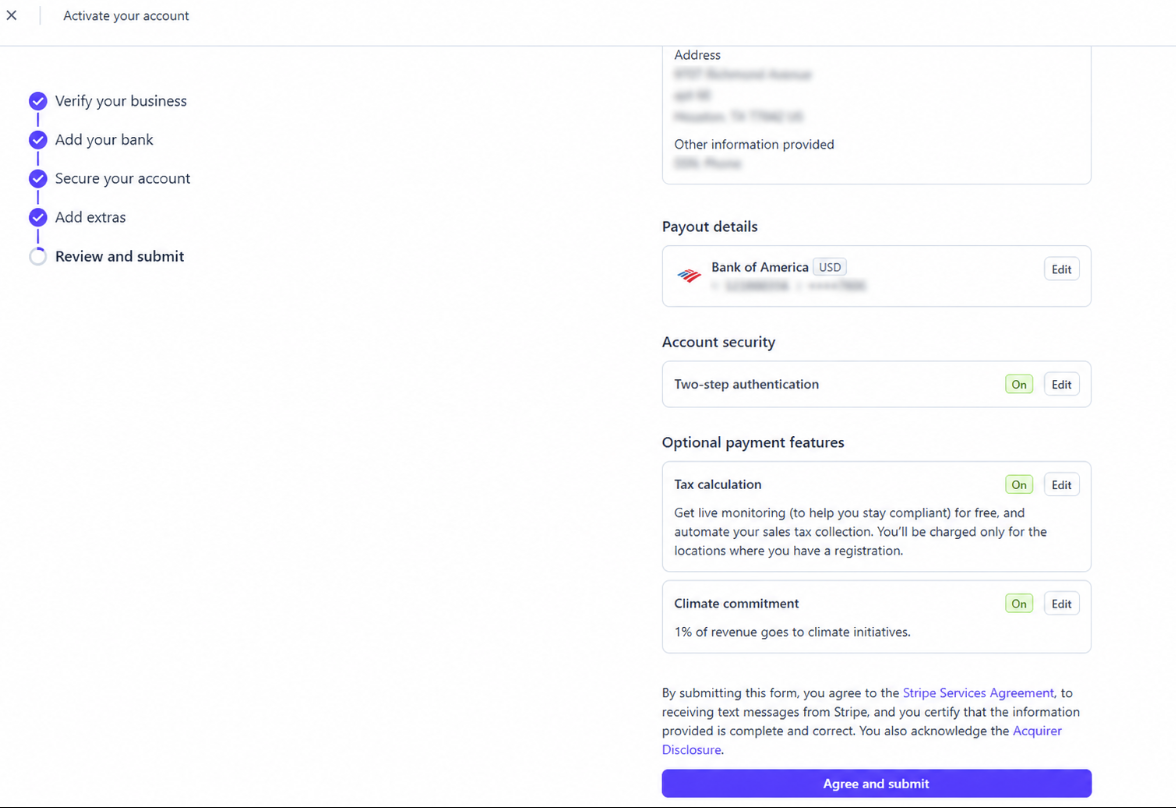
Click Agree and Submit
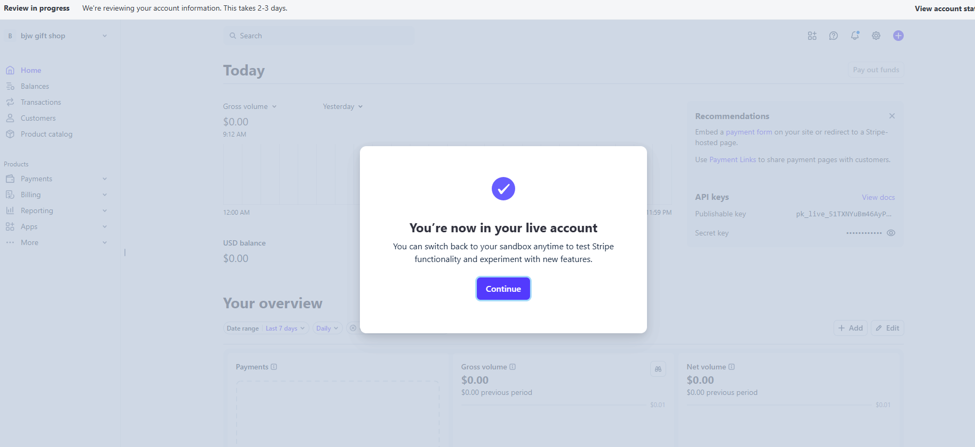
You are now live. Time for you to get your API keys so you can connect your stripe account to your Magento 2 website!

Simply return to your site manager (backend of your website) Navigate to Stores > Configuration > Sales > Payment Methods > Find Stripe and Click Configuration button
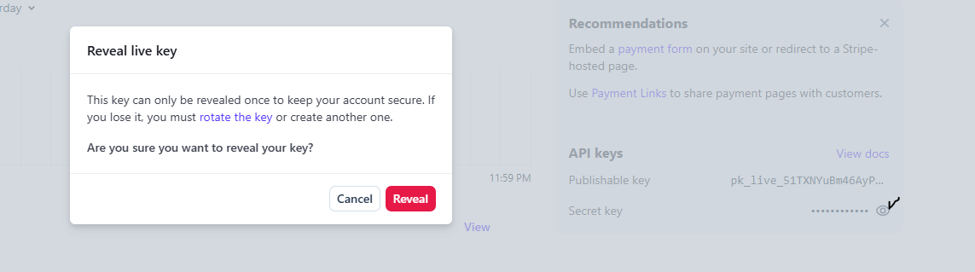
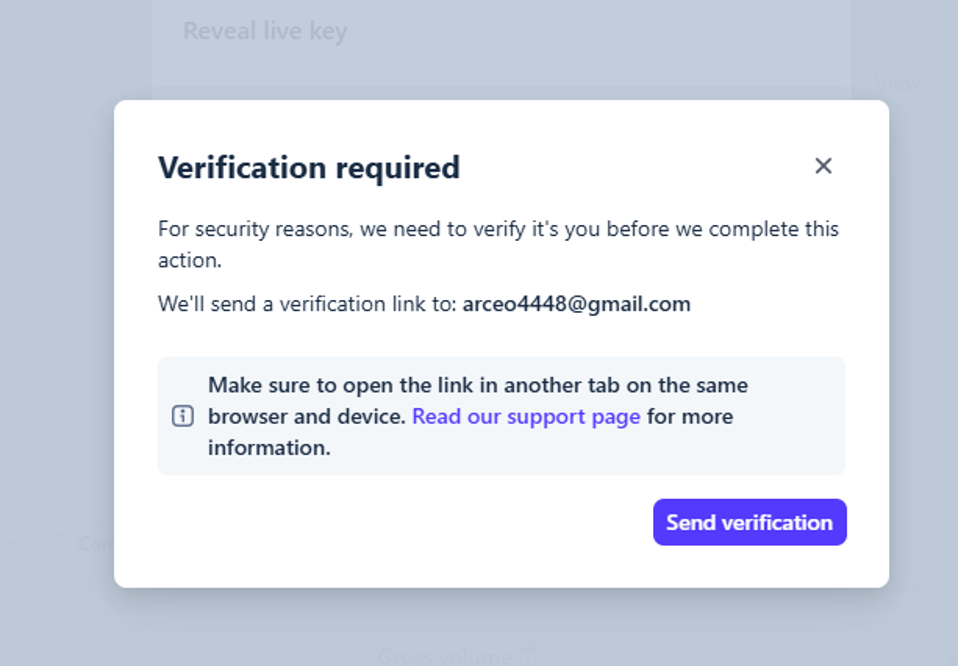
Enter these credentials in the Stripe configuration area. You may be asked to verify by email when generating your secret key. You must check your email and click link.
When attempting to reveal the API key you may see a message about sending verification to your email > Click Send Verification > check your email and verify so the API key can be revealed. Return to Dashboard and you should be able to reveal API keys

When done copying and pasting. Make sure to click SAVE CONFIG in top right-hand corner

You will also want to Flush your cache by navigating to System > Cache Management > Flush Magento Cache
Congrats! You now can accept cards on your website!
How did we do?
How to Access Wholesale Product Pricing
