Spin to win
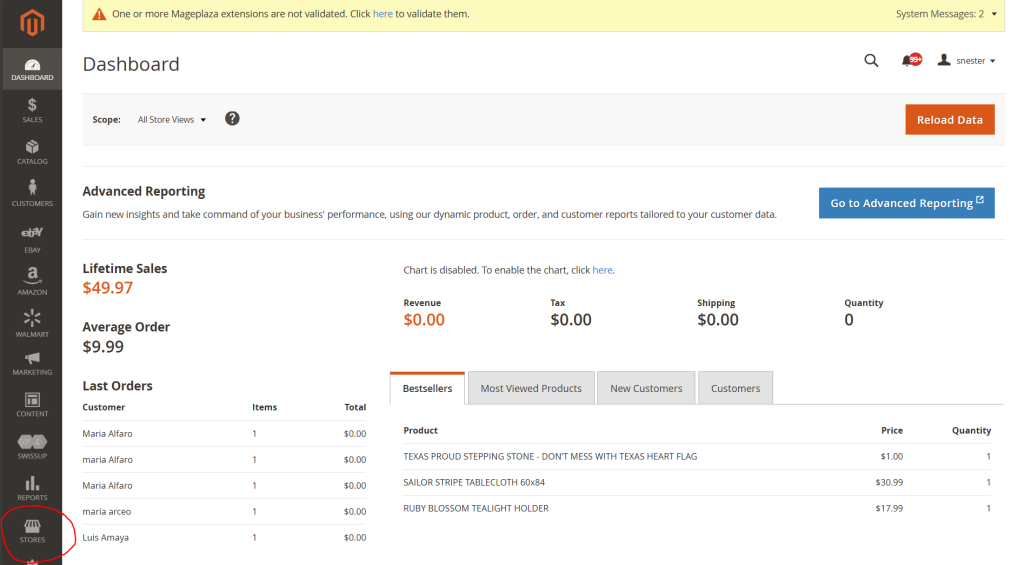
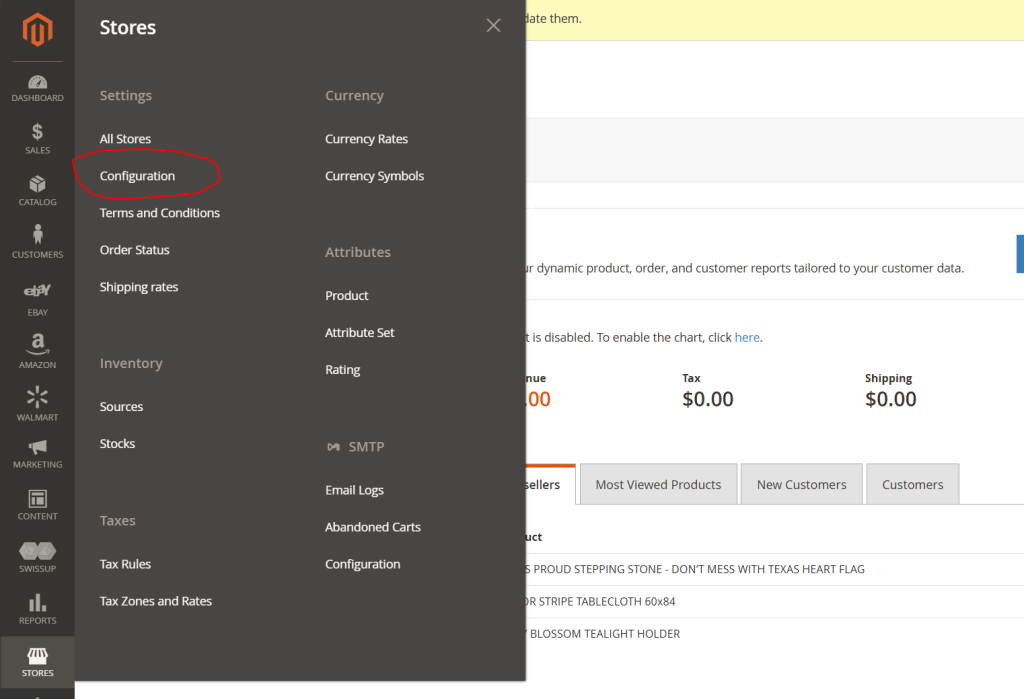
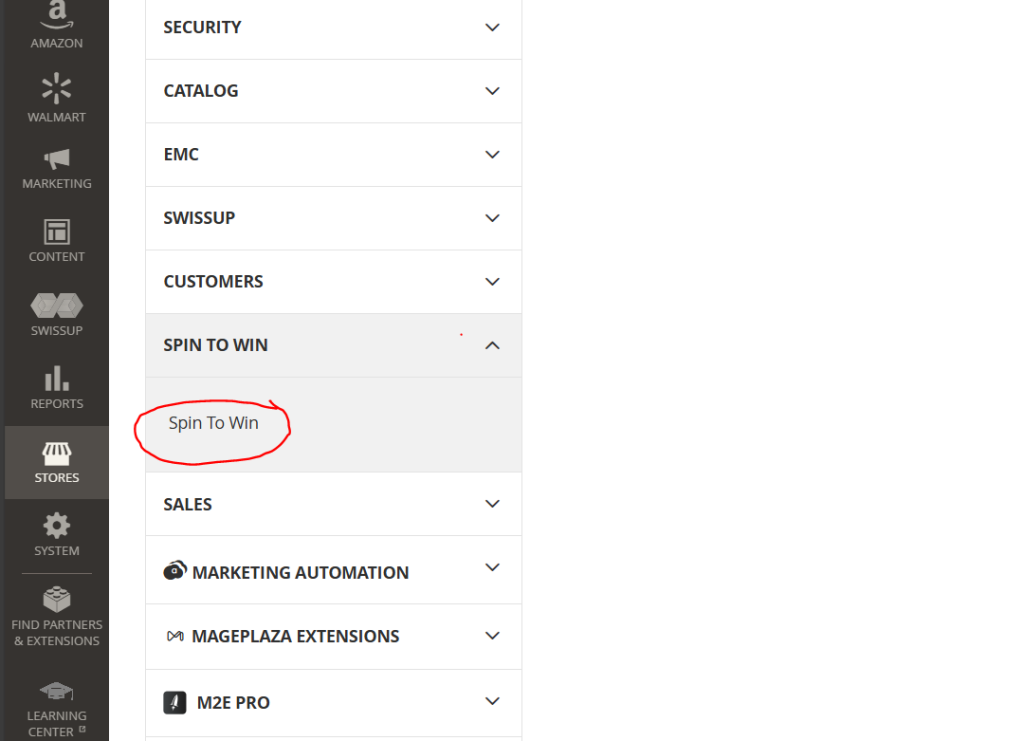
In this training we will cover how to activate and manage the Spin-to-win feature. First, login to your site manager & click Stores on left sidebar. Second, click on Configuration. Next, expand the s…

Updated
by eMerchantClub Support
In this training we will cover how to activate and manage the Spin-to-win feature
First, login to your site manager & click Stores on left sidebar
Second, click on Configuration
Next, expand the spin to win dropdown and click Spin To Win
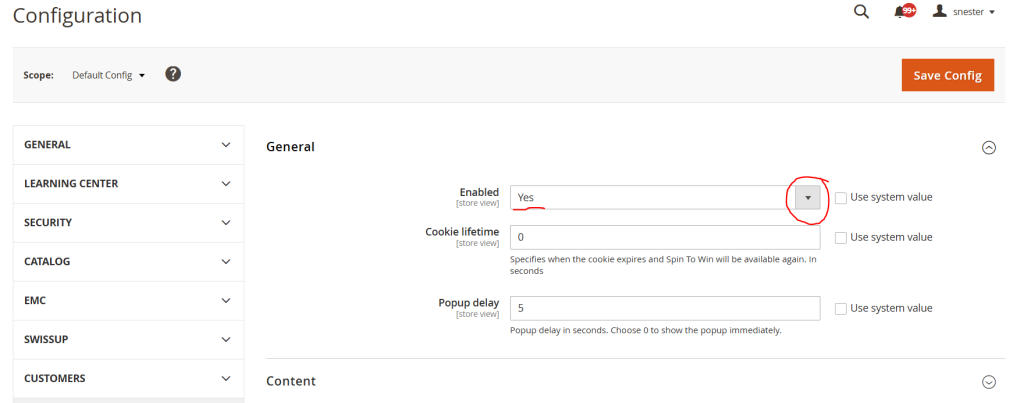
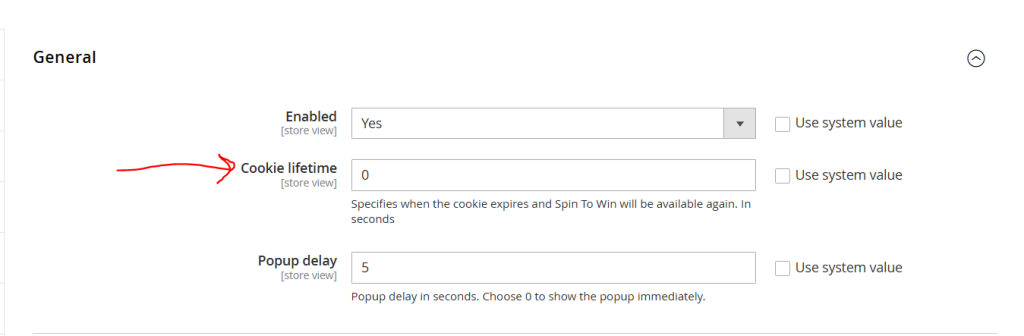
Now, click the General dropdown to expand section. From here be sure to click dropdown and select ‘Yes’ so the feature is active. “Popup Dealy” is the number of seconds you want before the spin to win feature is show to a homepage visitor. We recommend no less than 5.
In the Content section you can dictate exactly what you want your spin to win feature to say. In this area you can also select the color for your spin to win feature.
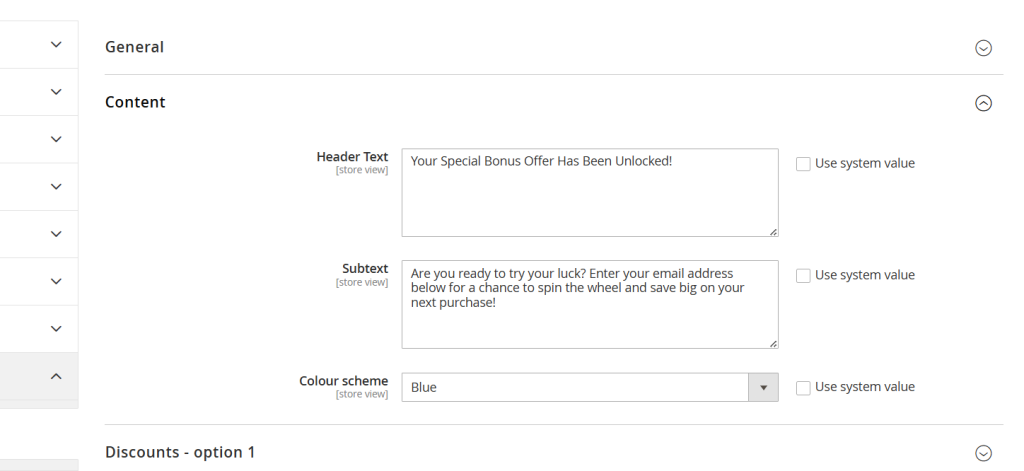
Next, apply all of the discount options you want for customers. You have various discount options to choose from. They will be automatically applied to your customer’s cart

Think of a cookie like a sticky note the website puts on someone’s browser that says: “This person already used the Spin to Win.” The Cookie Lifetime tells the website how long to remember that sticky note. It’s measured in seconds. 604800 (7 days)
Make sure to finalize by saving your work. Click Save Config

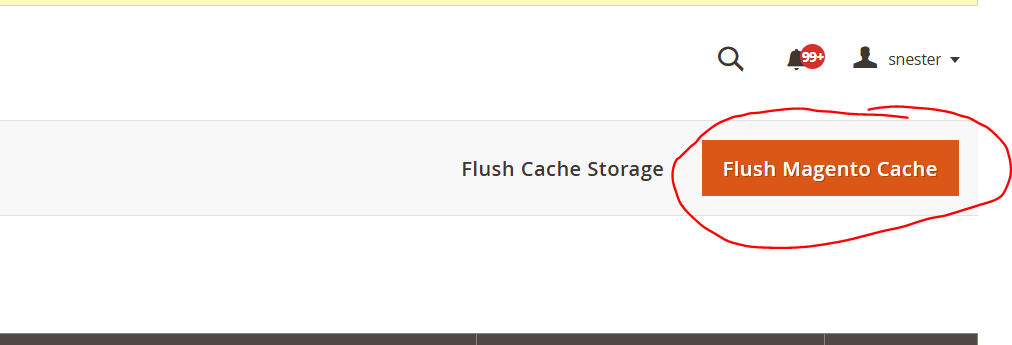
Now, make sure to clear your cache by visiting System > Cache Management > click Flush Magento Cache
Now you can view the feature on the front-end of your website. Make adjustments as you see fit. Remember, when a customer fills out the email field and uses the spin-to-win feature, you can view their emails in your Customers area. They will be labled as Subscriber.
How did we do?
Seasonal visual effects
